AstroPaper is a highly customizable Astro blog theme. With AstroPaper, you can customize everything according to your personal taste. This article will explain how you can make some customizations easily in the config file.
AstroPaper 是一个高度可定制的 Astro 博客主题。使用 AstroPaper,你可以根据你的个人品味定制一切。这篇文章将解释你如何在配置文件中轻松进行一些自定义。
Table of contents
Open Table of contents
Configuring SITE
配置 SITE
The important configurations resides in src/config.ts file. Within that file, you’ll see the SITE object where you can specify your website’s main configurations.
重要配置位于 src/config.ts 文件中。在该文件中,你会看到 SITE 对象,你可以在那里指定你的网站的主要配置。
During development, it’s okay to leave SITE.website empty. But in production mode, you should specify your deployed url in SITE.website option since this will be used for canonical URL, social card URL etc.. which are important for SEO.
在开发期间,留下 SITE.website 为空是可以的。但在生产模式下,你应该在 SITE.website 选项中指定你的部署 URL,因为这将用于规范 URL、社交卡 URL 等,这对 SEO 很重要。
export const SITE = {
  website: "https://astro-paper.pages.dev/", // replace this with your deployed domain
  author: "Sat Naing",
  profile: "https://satnaing.dev/",
  desc: "A minimal, responsive and SEO-friendly Astro blog theme.",
  title: "AstroPaper",
  ogImage: "astropaper-og.jpg",
  lightAndDarkMode: true,
  postPerIndex: 4,
  postPerPage: 4,
  scheduledPostMargin: 15 * 60 * 1000, // 15 minutes
  showArchives: true,
  showBackButton: true, // show back button in post detail
  editPost: {
    enabled: true,
    text: "Suggest Changes",
    url: "https://github.com/satnaing/astro-paper/edit/main/",
  },
  dynamicOgImage: true, // enable automatic dynamic og-image generation
  dir: "ltr", // "rtl" | "auto"
  lang: "en", // html lang code. Set this empty and default will be "en"
  timezone: "Asia/Bangkok", // Default global timezone (IANA format) https://en.wikipedia.org/wiki/List_of_tz_database_time_zones
} as const;src/config.ts
Here are SITE configuration options
以下是 SITE 配置选项
| Options | Description |
|---|---|
website | Your deployed website URL |
author | Your name |
profile | Your personal/portfolio website URL which is used for better SEO. Put null or empty string "" if you don’t have any. |
desc | Your site description. Useful for SEO and social media sharing. |
title | Your site name |
ogImage | Your default OG image for the site. Useful for social media sharing. OG images can be an external image URL or they can be placed under /public directory. |
lightAndDarkMode | Enable or disable light & dark mode for the website. If disabled, primary color scheme will be used. This option is enabled by default. |
postPerIndex | The number of posts to be displayed at the home page under Recent section. |
postPerPage | You can specify how many posts will be displayed in each posts page. (eg: if you set SITE.postPerPage to 3, each page will only show 3 posts per page) |
scheduledPostMargin | In Production mode, posts with a future pubDatetime will not be visible. However, if a post’s pubDatetime is within the next 15 minutes, it will be visible. You can set scheduledPostMargin if you don’t like the default 15 minutes margin. |
showArchives | Determines whether to display the Archives menu (positioned between the About and Search menus) and its corresponding page on the site. This option is set to true by default. |
showBackButton | Determines whether to display the Go back button in each blog post. |
editPost | This option allows users to suggest changes to a blog post by providing an edit link under blog post titles. This feature can be disabled by setting SITE.editPost.enabled to false. |
dynamicOgImage | This option controls whether to generate dynamic og-image if no ogImage is specified in the blog post frontmatter. If you have many blog posts, you might want to disable this feature. See the trade-off for more details. |
dir | Specifies the text direction of the entire blog. Used as HTML dir attribute in <html dir="ltr">. Supported values: ltr | rtl | auto |
lang | Used as HTML ISO Language code in <html lang"en">. Default is en. |
timezone | This option allows you to specify your timezone using the IANA format. Setting this ensures consistent timestamps across your localhost and deployed site, eliminating time differences. |
| 选项 | 描述 |
|---|---|
website | 你的部署网站 URL |
author | 你的名字 |
profile | 你的个人/作品集网站 URL,用于更好的 SEO。如果你没有,放 null 或空字符串 ""。 |
desc | 你的网站描述。对 SEO 和社交媒体分享有用。 |
title | 你的网站名称 |
ogImage | 网站的默认 OG 图像。对社交媒体分享有用。OG 图像可以是外部图像 URL 或放在 /public 目录下。 |
lightAndDarkMode | 为网站启用或禁用 light & dark mode。如果禁用,将使用主要颜色方案。此选项默认启用。 |
postPerIndex | 在主页的 Recent 部分显示的帖子数量。 |
postPerPage | 你可以指定在每个帖子页面显示多少帖子。(例如:如果你将 SITE.postPerPage 设置为 3,每个页面将只显示每页 3 个帖子) |
scheduledPostMargin | 在生产模式下,具有未来 pubDatetime 的帖子将不可见。然而,如果帖子的 pubDatetime 在接下来的 15 分钟内,它将是可见的。如果你不喜欢默认的 15 分钟边距,你可以设置 scheduledPostMargin。 |
showArchives | 确定是否在网站上显示 Archives 菜单(位于 About 和 Search 菜单之间)及其相应页面。此选项默认设置为 true。 |
showBackButton | 确定是否在每个博客帖子中显示 Go back 按钮。 |
editPost | 此选项允许用户通过在博客帖子标题下提供编辑链接来建议更改博客帖子。此功能可以通过将 SITE.editPost.enabled 设置为 false 来禁用。 |
dynamicOgImage | 此选项控制是否在博客帖子 frontmatter 中未指定 ogImage 时 生成动态 og-image。如果你有很多博客帖子,你可能想禁用此功能。有关更多细节,请参见 权衡。 |
dir | 指定整个博客的文本方向。用作 <html dir="ltr"> 中的 HTML dir attribute。支持的值:ltr | rtl | auto |
lang | 用作 <html lang"en"> 中的 HTML ISO 语言代码。默认是 en。 |
timezone | 此选项允许你使用 IANA 格式 指定你的时区。设置此项确保在你的本地主机和部署站点之间一致的时间戳,消除时间差异。 |
Update layout width
更新布局宽度
The default max-width for the entire blog is 768px (max-w-3xl). If you’d like to change it, you can easily update the max-w-app utility in your global.css. For instance:
整个博客的默认 max-width 是 768px (max-w-3xl)。如果你想改变它,你可以轻松更新你的 global.css 中的 max-w-app 工具。例如:
@utility max-w-app {
  @apply max-w-3xl;
  @apply max-w-4xl xl:max-w-5xl;
}src/styles/global.css
You can explore more max-width values in the Tailwind CSS docs.
你可以在 Tailwind CSS 文档 中探索更多 max-width 值。
Configuring logo or title
配置 logo 或标题
Prior to AstroPaper v5, you can update your site name/logo in LOGO_IMAGE object inside src/config.ts file. However, in AstroPaper v5, this option has been removed in favor of Astro’s built-in SVG and Image components.
在 AstroPaper v5 之前,你可以在 src/config.ts 文件中的 LOGO_IMAGE 对象中更新你的网站名称/logo。然而,在 AstroPaper v5 中,此选项已被移除,转而使用 Astro 的内置 SVG 和 Image 组件。
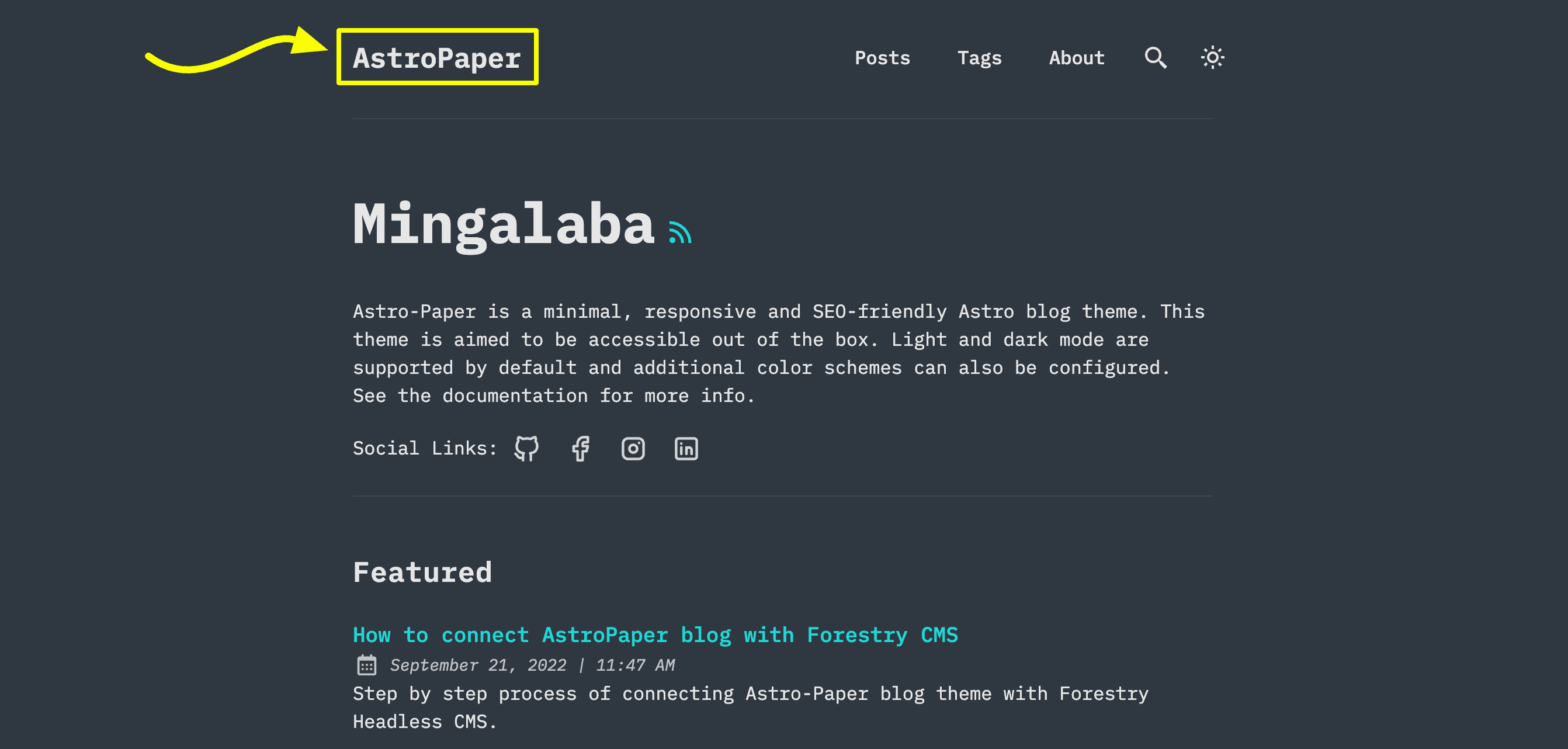
There are 3 options you can do:
你有 3 个选项可以做:
Option 1: SITE title text
选项 1:SITE 标题文本
This is the easiest option. You just have to update SITE.title in src/config.ts file.
这是最简单的选项。你只需要更新 src/config.ts 文件中的 SITE.title。
Option 2: Astro’s SVG component
选项 2:Astro 的 SVG 组件
You might want to use this option if you want to use an SVG logo.
如果你想使用 SVG logo,你可能想使用此选项。
-
First add an SVG inside
src/assetsdirectory. (eg:src/assets/dummy-logo.svg) -
首先在
src/assets目录中添加一个 SVG。(例如:src/assets/dummy-logo.svg) -
Then import that SVG inside
Header.astro -
然后在
Header.astro中导入那个 SVG--- // ... import DummyLogo from "@/assets/dummy-logo.svg"; ---src/components/Header.astro -
Finally, replace
{SITE.title}with imported logo. -
最后,用导入的 logo 替换
{SITE.title}。<a href="/" class="absolute py-1 text-left text-2xl leading-7 font-semibold whitespace-nowrap sm:static" > <DummyLogo class="scale-75 dark:invert" /> <!-- {SITE.title} --> </a>
The best part of this approach is that you can customize your SVG styles as needed. In the example above, you can see how the SVG logo color can be inverted in dark mode.
此方法最好的部分是你可以根据需要自定义你的 SVG 样式。在上面的例子中,你可以看到 SVG logo 颜色如何在暗模式下反转。
Option 3: Astro’s Image component
选项 3:Astro 的 Image 组件
If your logo is an image but not SVG, you can use Astro’s Image component.
如果你的 logo 是一个图像而不是 SVG,你可以使用 Astro 的 Image 组件。
-
Add your logo inside
src/assetsdirectory. (eg:src/assets/dummy-logo.png) -
在
src/assets目录中添加你的 logo。(例如:src/assets/dummy-logo.png) -
Import
Imageand your logo inHeader.astro -
在
Header.astro中导入Image和你的 logo--- // ... import { Image } from "astro:assets"; import dummyLogo from "@/assets/dummy-logo.png"; ---src/components/Header.astro -
Then, replace
{SITE.title}with imported logo. -
然后,用导入的 logo 替换
{SITE.title}。<a href="/" class="absolute py-1 text-left text-2xl leading-7 font-semibold whitespace-nowrap sm:static" > <image src="{dummyLogo}" alt="Dummy Blog" class="dark:invert" /> <!-- {SITE.title} --> </a>
With this approach, you can still adjust your image’s appearance using CSS classes. However, this might not always fit what you want. If you need to display different logo images based on light or dark mode, check how light/dark icons are handled inside the Header.astro component.
使用此方法,你仍然可以使用 CSS 类调整你的图像外观。然而,这可能并不总是符合你的要求。如果你需要根据亮或暗模式显示不同的 logo 图像,请检查 Header.astro 组件中如何处理亮/暗图标。
Configuring social links
配置社交链接
You can configure social links in SOCIALS object inside constants.ts.
你可以在 constants.ts 中的 SOCIALS 对象中配置社交链接。
export const SOCIALS = [
  {
    name: "GitHub",
    href: "https://github.com/satnaing/astro-paper",
    linkTitle: ` ${SITE.title} on GitHub`,
    icon: IconGitHub,
  },
  {
    name: "X",
    href: "https://x.com/username",
    linkTitle: `${SITE.title} on X`,
    icon: IconBrandX,
  },
  {
    name: "LinkedIn",
    href: "https://www.linkedin.com/in/username/",
    linkTitle: `${SITE.title} on LinkedIn`,
    icon: IconLinkedin,
  },
  {
    name: "Mail",
    href: "mailto:yourmail@gmail.com",
    linkTitle: `Send an email to ${SITE.title}`,
    icon: IconMail,
  },
] as const;src/constants.ts
Configuring share links
配置分享链接
You can configure share links in SHARE_LINKS object inside src/constants.ts.
你可以在 src/constants.ts 中的 SHARE_LINKS 对象中配置分享链接。
Conclusion
结论
This is the brief specification of how you can customize this theme. You can customize more if you know some coding. For customizing styles, please read this article. Thanks for reading.✌🏻
这是你如何自定义这个主题的简要规范。如果你知道一些编码,你可以自定义更多。对于自定义样式,请阅读 这篇文章。感谢阅读。✌🏻